By MSN Karthik, Founder & Director, Adwhyta AI Studio · August 2026
Key Takeaways
- AI-generated video arrives with its look already baked in. There's no RAW, no log profile, no negative to go back to — the model made the exposure and palette decisions at render time.
- That means the color grade stops being a creative free hand and becomes two jobs: rescue and unify.
- The color decisions that matter most happen before generation, in a look bible your prompts inherit from.
- Film look LUTs built for log footage will break AI clips. Balance first, then apply the LUT at reduced opacity, then trim underneath it.
- Shot-to-shot color drift is the single most obvious tell of unfinished AI work. Scene-matching to a hero shot fixes it faster than grading each clip on its own.
What Is AI Color Grading?
AI color grading is the use of machine-learning tools to balance, match, and stylise video footage — analysing a clip's exposure, skin tones, and color distribution, then proposing corrections a colorist would otherwise dial in by hand. Applied to generated footage, it also means removing the look the model baked in before adding one you chose.
That second half is the part almost nobody writes about, and it's where most AI films fall apart.
The rest of this guide is the color grading workflow we actually run, in order, with the tools named where they earn their place. It's a craft guide, not a tool roundup — every AI color tool below is an instrument inside a pipeline, not a product recommendation. The goal is a cinematic look you chose, held across every shot, rather than the one the model handed you.
Grading Generated Footage Is a Different Craft
When you color grade footage from a real camera, you're working with a recording of light. Somebody set a stop, chose a filter, and shot it flat on purpose so the color work could happen later. The file is an invitation.
Generated footage is not a recording. It's an opinion. The model has already decided the contrast curve, the saturation, the color temperature, and where the highlights roll off, and it decided all of that during the render. You get a delivery master, not a negative.
Here's the practical difference:
| Camera footage | Generated footage | |
|---|---|---|
| Starting point | Log or RAW, deliberately flat | Look already applied |
| Headroom | Wide — often 12–16 stops recoverable | Thin; pushing hard breaks the image |
| Consistency | One camera, one setup, one operator | Every clip is an independent render |
| Grain and texture | Real sensor noise | Synthetic, sometimes absent, sometimes wrong |
| Failure mode | Underexposure, mixed white balance | Plastic sharpness, color casts, drift between shots |
Everything in the right column is why grading AI footage is its own discipline rather than an afternoon of color correction.
There's a second-order effect too. In traditional color work and traditional grading generally, grading time scales with ambition — a simple job is quick, a stylised one is long. On AI footage, grading time scales with inconsistency. Twelve shots that all came out slightly differently will cost you more than one shot you're trying to make beautiful. Budget accordingly.
The Baked-In Look Problem (and How to De-Grade AI Footage)
The first move on generated footage is usually subtraction.
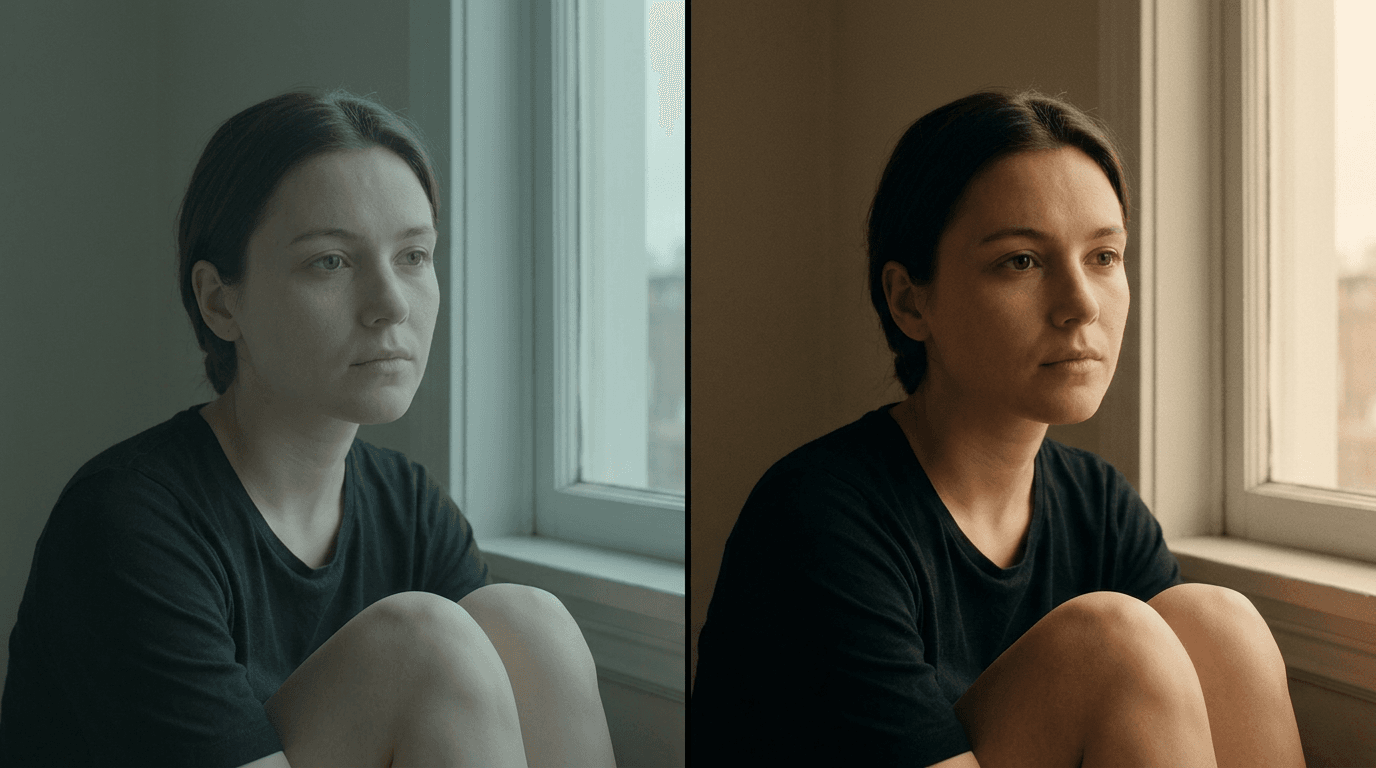
Models love contrast. They love teal shadows and orange skin, because that's what the internet trained them on. So before you add anything, take some of that away — lift the crushed blacks until you can see detail in them again, pull saturation back toward neutral, and flatten the curve enough that you have somewhere to move. You're manufacturing the log profile the render never gave you.
Then rebuild in the order that keeps the image intact:
- Upscale first. Detail you add later can't be recovered from a soft frame. Topaz video upscaling is the usual answer here: Astra launched in June 2025 as the first creative video upscaler, and Astra 2 (April 2026) added a prompt field plus Creativity and Sharpness sliders on a 1–5 scale. It synthesises detail rather than interpolating it, which is exactly what generated footage needs.
- Balance. Neutralise color casts, set your black and white points, get every clip to a sane Rec.709 baseline. This is basic color correction and it is not optional.
- Match. Bring every shot in the scene to one reference.
- Color grade. Now the creative look goes on.
- Texture. Light diffusion and grain last. Grain over a clean image reads as film. Grain over a plasticky image reads as a plasticky image with grain.
That order isn't arbitrary. Skip the upscale and your grain gets crushed by the scaler. Color grade before you match and you'll do the creative work five times instead of once.
One more habit worth building: de-grade on a copy, and keep the original render. Generated clips are cheap to store and expensive to reproduce exactly. If a de-grade goes too far, you want the untouched file, not a re-roll of the video generation that comes back subtly different.
Look Development: Build the Grade Bible Before You Generate
This is the inversion that changes everything.
On a traditional shoot, look development happens in prep and gets tested on set. With generated footage, look dev happens in prep and gets executed by the model. Your prompt is the lighting truck. If you haven't decided the palette before you generate, you're going to spend the grade fighting six different films.
A grade bible for an AI production is short and strict:
- One motivated light source per scene, named in the world — a window, a practical, firelight. If the prompt doesn't name the source, the model invents three and none of them agree.
- A narrow hue family, with at most one accent color. Two hue families in one sequence is how you end up with shots that refuse to match.
- Reference frames — actual images, not adjectives. "Warm and moody" produces noise. A frame does not.
- A stated film response: what the highlights do, whether the blacks are lifted, how far the saturation goes. Naming a film stock is a legitimate shortcut here, as long as everyone knows which color characteristics you actually mean.
- The exception list. Which scenes deliberately break the palette, and why.
We built Unmasked this way. It's a short about a Theyyam dancer and a Gen-Z vlogger, and the whole film lives or dies on whether the Theyyam makeup — hard reds and whites against fire — reads as sacred rather than costume. Locking that palette before generation is why the color holds across the runtime. The film won Best Cinematography at Indywood AI Cinefest, and Best Editing at the India AI Film Festival. Neither of those awards goes to a project that decided its look in post.
Scale matters here. For Unmasked we generated roughly an hour to an hour and a half of footage for an eight-minute film, and only 5–10% of it was usable. A look bible is what makes that ratio survivable — when you're selecting from many AI videos rather than grading a single take, the shots that already sit inside the palette are the ones you keep. Selection is a color decision before it's an editing one.
If you want the prompt-side of this, our prompting guide covers how color language actually lands in a generation, and our cinematography guide covers the light itself.

LUT Strategy and Color Space Workflow for AI Footage
Film look LUTs are the most misused tool in this whole workflow, and the reason is simple: they were built for log or neutral camera input. Feed one a clip that already has contrast and saturation baked in and it applies the curve on top of a curve. Skin goes orange, shadows block up, and the result looks like a filter because it is one.
The method that works:
- Balance the clip to neutral first. Every time.
- Apply the LUT at reduced opacity — somewhere between 50% and 70% is where most film look LUTs stop screaming.
- Trim underneath the LUT, per clip, not on top of it. Adjusting above the look is how you fight it; adjusting below is how you feed it.
On color space and color management: for most brand and social video production, a plain Rec.709 pipeline is fine and simpler to hand off. If you're mixing generated footage with live-action plates or VFX renders, an ACES pipeline earns its complexity. ACES 2.0 reached end users in mid-2025 with volumetric gamut mapping built on the JMH model plus unified Output Transforms, which handle highlight rolloff and heavily saturated colors far more gracefully than 1.x did. As of mid-2026 it's supported in Blender 5.0 and up, OCIO 2.5 (the VFX Reference Platform 2026 config), DaVinci Resolve 20 in beta, Flame, Mistika, and Pomfort.
One caution worth saying out loud: an ACES pipeline does not fix thin source data. It manages color correctly across a chain. If the render was 8-bit and crunchy, ACES will manage a crunchy image very accurately.
Scene-Matching: Consistent Color Across Generated Shots
Every generated clip is an independent render. The model doesn't remember what it did to the last shot. So a six-shot scene arrives as six slightly different films — one a little cooler, one a little contrastier, one with the key light apparently on the other side of the room.
Audiences don't consciously notice color. They notice inconsistency, instantly, and they read it as cheap.
The method:
- Pick a hero shot. Usually the one with a face in it, well lit, that already looks closest to right. Color grade that one properly.
- Match everything else to it, not to an abstract ideal. DaVinci Resolve's AI features drive Color Match against a reference clip via the Neural Engine. Colourlab Ai's Gen 3.2 engine works natively in ACES with around 16 stops of range and offers Just Click Match plus Region Match for targeted fixes — Region Match is the one you want when only the skin is off — and it plugs into Resolve, Premiere, and Final Cut. Premiere's Lumetri Color Match runs on Adobe Sensei and will prioritise faces when Face Detection is on.
- Then check faces manually. Automatic color matching optimises for the whole frame. Skin is the one thing viewers have a reference for. Grade the environment, then mask the face back to something a human would recognise.
- Kill color casts before matching, not after. A green cast fed into an auto-matcher teaches it the wrong target.
Automated matching gets you 80% of the way in a fraction of the time. The last 20% is where the film is. Matching the color of twelve shots by eye is a day; using AI color tools to do the first pass turns it into an afternoon, and the afternoon is spent on the shots that actually needed a human.
The same discipline applies to faces and wardrobe across a whole production — that's a different failure mode with a different fix, covered in our guide to character consistency.
Where AI Handles It, and Where Manual Grading Wins
It's worth being blunt about the division of labour, because most AI grading tools are sold as though there isn't one.
AI handles well: neutralising color casts, auto color balance across a batch, matching a hundred clips to a reference, isolating a specific color or a face without rotoscoping, upscaling and detail synthesis, and first-pass exposure normalisation. This is where AI color correction genuinely earns its keep — judgement-free work that used to eat the first day of any grade.
Manual grading still wins: the look itself, skin under a stylised palette, the one shot that should break the rules, anything where the "correct" answer and the right answer differ. Auto color has no opinion about what your film is about. Professional color grading is a series of arguments about meaning, and the machine has no position in them.
The practical version: apply AI tools to everything upstream of the creative look, and keep the creative look in human hands. That's not conservatism. It's that automatic color grading optimises toward the average of its training data, and the average is exactly what a cinematic grade is trying to escape.
Mood by Numbers: How the Color Grade Shapes Story Emotion
Color is the only part of the frame that talks to the audience without going through their conscious mind. Color temperature reads as safety or threat before anyone processes the composition.
You don't need a semester of color theory to use this. A few working rules we rely on:
- Warm doesn't mean happy. Warm means close. Firelight, a kitchen, late afternoon. Cool means distance — not sadness, distance.
- Saturation is volume. A desaturated frame isn't sadder, it's quieter. Turn it up for memory, dreams, and advertising; turn it down for realism and dread.
- Contrast is certainty. Hard blacks and clean whites read as decisive. A lifted, milky low end reads as ambiguity.
- Break the palette once. One shot per film that violates the color rules will carry more weight than any amount of grading elsewhere.
The advertising version of this matters commercially. Consumer comfort with brands using AI dropped from 57% to 46%, and 57% of consumers say they worry about fake AI ads. A color grade that reads as "filter" confirms every suspicion the viewer already had. A grade that reads as photography doesn't.
Popular Cinematic Looks and How to Build Them
Most requests arrive as a reference rather than a spec — "make it look like Sicario", "make it look like Kodak". Translating that into a grade is a real skill, so here's how the popular cinematic looks decompose. Build each one with color wheels and curves rather than a single LUT, and you'll be able to trim it per shot.
| Look | What it actually is | Watch out for |
|---|---|---|
| Bleach bypass | Low saturation, very high contrast, silver highlights | Eats shadow detail that AI footage barely had |
| Teal & orange | Split-toned complementaries: cool shadows, warm skin | Half of it is already baked into the render — de-grade first |
| Film stock emulation | A specific density curve plus grain and halation | Needs real grain, not a sharpening artifact |
| Day-for-night | Cool ambient fill, lifted blacks, one warm practical | Crushing to black is the amateur version |
| Bright commercial | Neutral balance, protected highlights, high clarity | Exposes plastic skin instantly — grade skin last |
Advanced cinematic looks are usually just two or three of these stacked with restraint. The failure mode is always the same: applying a creative look before the footage is balanced, so the look is doing correction work it was never designed for. Cinematic color grading is subtractive far more often than people expect — you get professional cinematic results by removing what fights the palette, not by adding a stack of looks on top of it.
Five Color Grades That Transformed Flat Output
Five failure modes we hit constantly, and what fixes them.
1. The plastic face. Generated skin comes out too smooth and too even. Fix: reduce local contrast on the face slightly, add a touch of warmth in the midtones only, and let a little grain land on the skin. Perfection is the tell.
2. The teal-orange default. The model applied a blockbuster look nobody asked for. Fix: de-grade toward neutral, then rebuild in the palette the look bible specified. Half the "cinematic" is already there and it's the wrong half.
3. The mismatched pair. Shot and reverse shot that clearly happen in different rooms. Fix: match to the hero, then hand-trim the reverse — pay attention to where the light comes from, not just the overall color temperature.
4. The crushed night scene. Shadows with nothing in them, so the frame reads as black rectangles. Fix: lift the black point until texture appears, add a cool ambient fill in the low end, and let one warm practical carry the frame. Night is not the absence of light; it's a different light.
5. The flat product shot. Correct exposure, zero appeal. Fix: this one isn't a color grading problem. It's a lighting problem that has to go back to generation with a named motivated source. Knowing when to send it back is a grading skill too.
Best AI Color Grading Tools, by Job
We're not going to rank these, because the ranking depends entirely on what you're doing. Here's what each AI color grading tool is actually for, as of mid-2026.
| Tool | Best at | Notes |
|---|---|---|
| DaVinci Resolve | Doing the whole color grade properly | The free version of DaVinci Resolve includes the full Color page. Studio adds the Neural Engine — Auto Color, Color Match, Magic Mask, Super Scale — plus temporal noise reduction and beyond-4K support. |
| Colourlab Ai | Matching hundreds of shots fast | Gen 3.2 engine, native ACES, ~16 stops; Just Click Match and Region Match; Look Designer and Grainlab for film emulation. Plugs into Resolve, Premiere, FCP. |
| fylm.ai | Cloud look development and client review | An AI color grading platform built on film color response, with Color Match and AI Colour Match; free tier for experimenting. |
| Adobe Premiere (Lumetri Color) | Staying inside an existing edit | Lumetri's Auto Color runs on Adobe Sensei; Color Match can prioritise faces via Face Detection. |
| Topaz Astra / Astra 2 | The pass before color | Creative upscaling that synthesises detail. Astra 2 added a prompt field and Creativity/Sharpness sliders (1–5). |
The honest summary: every one of these is a faster way to get to the starting line. None of them decides what the film should look like. There is no all-in-one AI that turns a bag of generated clips into a coherent film, and any major AI color grading pitch that implies otherwise is selling the easy 80%.
Do You Need Dedicated Color Grading Software, or Is DaVinci Resolve Enough?
If you're doing anything beyond a single clip, yes — and it doesn't have to cost anything. The free version of DaVinci Resolve ships the complete Color page: nodes, color wheels, curves, qualifiers, scopes, and the tracker. That's powerful grading by any standard, and it's the same panel professionals use. What Studio buys you is DaVinci AI — the Neural Engine features listed above — plus temporal noise reduction and beyond-4K delivery.
Editing timelines in Premiere or Final Cut can carry a competent color correction pass with Lumetri Color, and for a fast turnaround that's often the right call. But a dedicated color grading app is the difference between adjusting a clip and building a grade you can propagate across a sequence. On generated footage, where the whole job is a consistent cinematic result across every shot, that propagation is the point. Pairing Resolve with AI matching tools is how most professional grading of AI material actually gets done in 2026: the machine proposes, the Color page decides.
Whatever you use, work with scopes visible. Generated footage lies to your eye more than camera footage does, because there's no reference for what the "real" scene looked like. The waveform doesn't care.
Color Correction vs Color Grading
Color correction is making the image right. Neutral whites, accurate skin, consistent exposure across the scene. There's a correct answer and you can be wrong. This is the part AI correction tools genuinely automate.
Color grading is making the image mean something. Pushing the palette toward an emotion, deciding what the audience should feel before they know why. There's no correct answer, only a choice.
On generated footage there's a third stage before both: de-grading, removing what the model decided so correction has somewhere to start. Traditional color pipelines across film and video don't have this step, because traditional cameras don't ship you an opinion.
Put differently: color grading AI video is correction, de-grading, and grading in a different order from the one every tutorial teaches. Get the sequence right and you make the footage look photographed. Get it wrong and no amount of using color wheels afterwards will save it.
Grade-Only Services for Footage You've Already Generated
Plenty of teams generate their own footage now and get stuck at exactly this point — the shots are there, they just don't look like a film. That's a finishable problem.
We take generated footage through the full finishing pass: upscale, de-grade, balance, scene-match, look, texture, delivery in whatever spec the platform wants. Sometimes the honest answer is that a shot needs regenerating rather than grading, and we'll say so — that call is cheaper made early.
Adwhyta is a quality-driven AI film studio working across narrative films, premium international microdramas, highly stylised animation, ad films and commercials, and long-form content. The grade is one stage of a pipeline we run end to end, and the color discipline is the same whether it's a thirty-second commercial or an eight-minute short.
If you want the whole thing handled instead, our workflow with AI from script to master covers the full pipeline, and our post-production process covers the stages either side of the grade.
We don't ship raw generations. Talk to us about your footage, or look at the work first.
FAQs
Can you color grade AI-generated video like normal footage? Partly. The tools are the same, but the material isn't. AI video has contrast and saturation baked in, no log or RAW profile, and thinner bit depth, so heavy adjustments break down faster than they would on camera footage. Add a de-grading step before correction and work in smaller moves.
What are the best AI color grading tools in 2026? DaVinci Resolve for the actual color grade (Studio for the Neural Engine features), Colourlab Ai for matching large volumes of shots, fylm.ai for cloud look development, Lumetri Color for staying inside a Premiere edit, and Topaz Astra for the upscale pass before color. Each solves a different stage.
Why do my AI clips look different from each other? Because each clip is an independent render with no memory of the last one. Fix it by grading one hero shot properly and matching everything else to it, rather than grading each clip in isolation.
Should I use film look LUTs on AI footage? Yes, but not straight. LUTs expect log or neutral input. Balance the clip first, apply the LUT at 50–70% opacity, and make per-clip trims underneath the LUT rather than on top of it.
Do I need an ACES workflow? Only if you're mixing generated footage with live-action plates or VFX renders. For most brand and social work a Rec.709 color space is simpler and hands off cleanly. ACES 2.0, out since mid-2025, handles highlight rolloff and saturated color much better than 1.x if you do need it.
Can AI do the whole color grade for me? No, and the tools that claim it are describing the correction stage. AI grades a batch to consistency; it doesn't decide what the film should feel like. Use AI tools for balance, matching, and cleanup, then make the creative pass by hand.
Written by MSN Karthik, Founder & Director at Adwhyta, a quality-driven AI film studio spanning narrative films, international microdramas, stylised animation, commercials, and long-form work. IIT Guwahati alumnus, co-founder of Zipy.ai, TEDx speaker, and award-winning AI filmmaker whose short "Unmasked" won 7 international AI film awards including Gold at the Bali International AI Film Festival. He once made a festival-screened sci-fi short for under $75.